
How to Customize Invoice Email Templates
EasyEviction’s customizable invoice email template feature gives attorneys, admins, and property managers full control over how invoice communications are sent to clients. Instead of relying on fixed, hardcoded messages, users can create personalized, professional email templates that automatically populate with invoice details like client name, case, and balance. This not only saves time and ensures consistency across single, bulk, and recurring invoice sends, but also improves clarity and professionalism in client communication. With built-in formatting (HTML) and tracking features like “Last Sent Date,” teams can streamline their billing workflow, reduce manual effort, and maintain a more polished and reliable invoicing process.
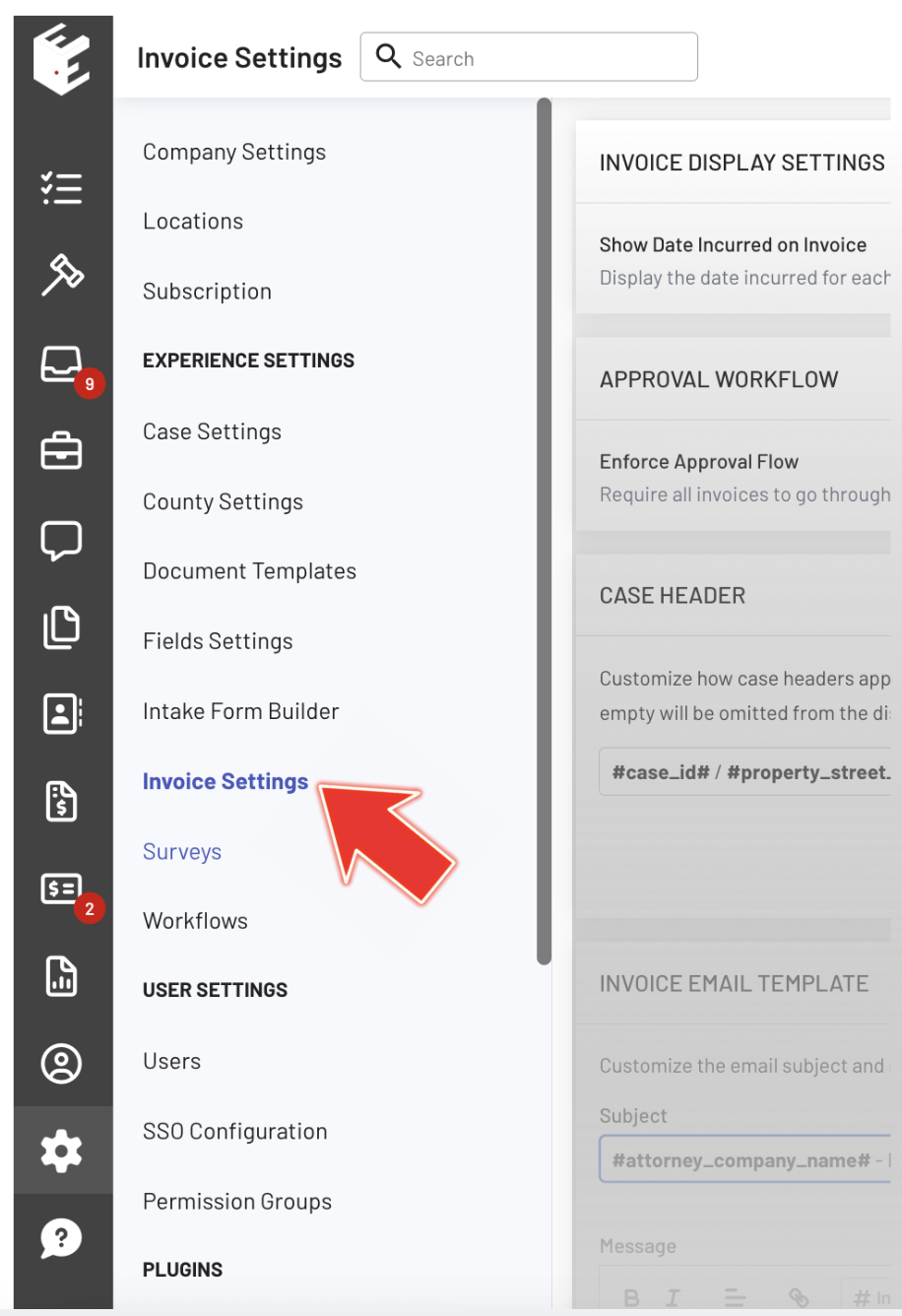
Step 1: Access Invoice Settings
Go to the Admin panel and open Invoice Settings. This is where you can manage and update the email templates used for sending invoices.
Step 2: Edit the Email Subject and Message
The email subject and message body fields are located in the Invoice Email Template section, where you can customize how your invoice emails appear to recipients.
Step 3: Add Placeholders for Dynamic Data
Use placeholders (e.g., #ClientName#, #InvoiceNumber#) to automatically insert real invoice data into your emails. This ensures each message is personalized without manual editing.
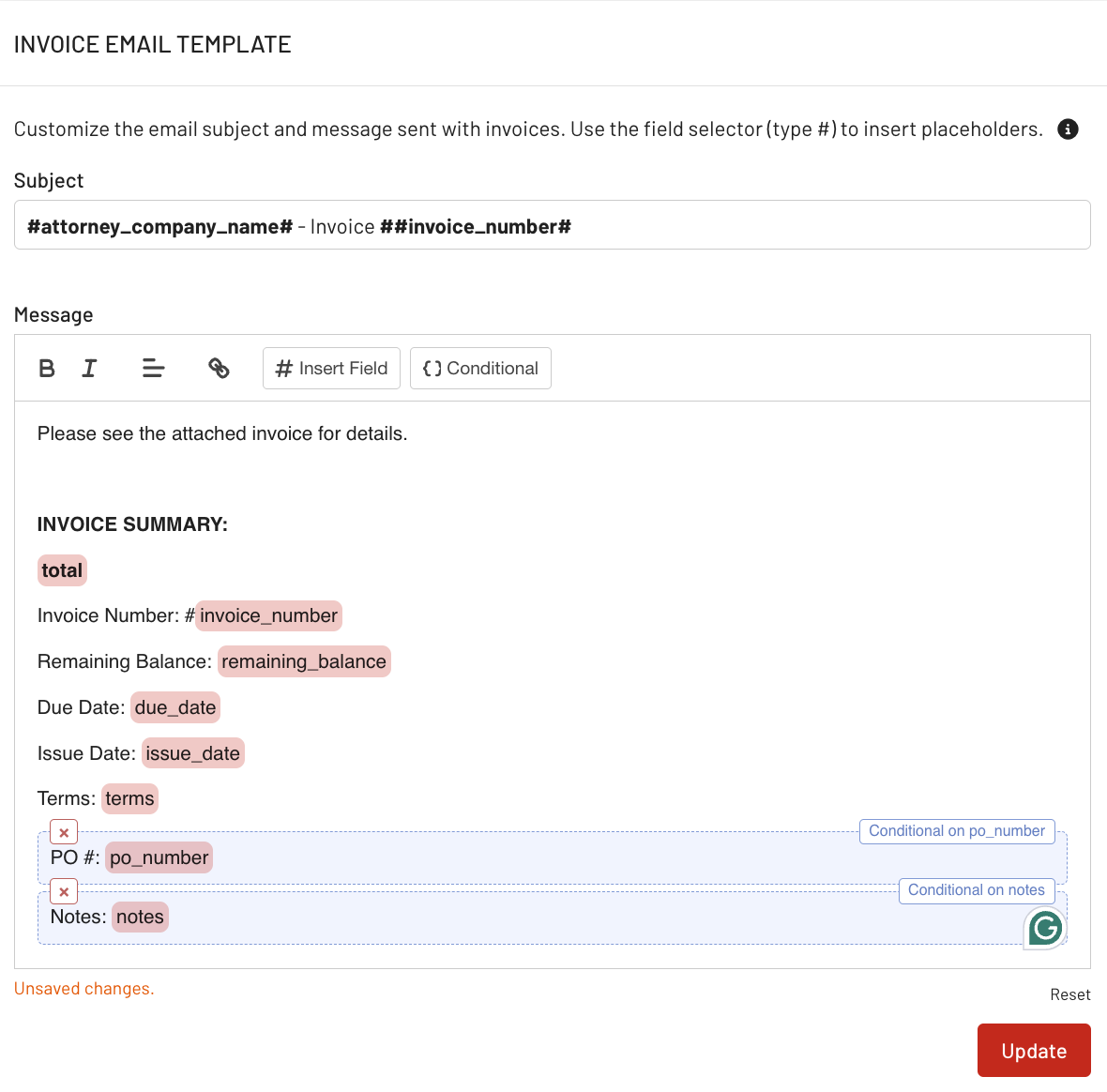
Click Update after making changes to apply your template. Your updates will be used for all future invoice emails.
Step 4: Send and Review the Invoice Email
When sending an invoice, the system automatically pre-fills the subject and message using your template. Before sending, review the email to ensure all details are correct and the formatting appears clean and professional, and make any necessary edits.
Step 5: Track When Invoices Are Sent
Use the Last Sent Date column in the invoice list to see when an invoice email was last delivered. This helps you monitor communication and avoid duplicate sends.

Custom invoice email templates in EasyEviction make it easier to manage client communication by combining automation with flexibility. By setting up and using templates with dynamic placeholders, your team can send consistent, accurate, and professional emails with minimal effort. With added visibility into when invoices are sent, you can stay organized, reduce errors, and maintain a more efficient billing process.
For more information on configuring locations, permissions, or access restrictions, please contact Customer Support for assistance.