
Payment Center: Managing Pending Checks
The Pending Checks feature in EasyEviction streamlines payment management for lawyers, property managers, and clients by providing a clear, organized way to track, create, and print checks. With this tool, users can quickly request checks for billable items, monitor outstanding payments through the Dashboard widget, and ensure accurate processing without affecting invoices. This improves workflow efficiency, reduces errors, and ensures timely payments, making it an essential tool for all EasyEviction users.
Follow the steps below to navigate the Payment Center efficiently.
1. Create a Pending Check
Navigate to the Eviction Details Page, then click Add Billable Item. From the options provided, select Request Pending Check to create a pending check for that billable item.
(See Pending Checks Queue—A Smarter Way to Handle Payments Article)
The system will record the check as pending, ready for processing.
2. Monitor Pending Checks
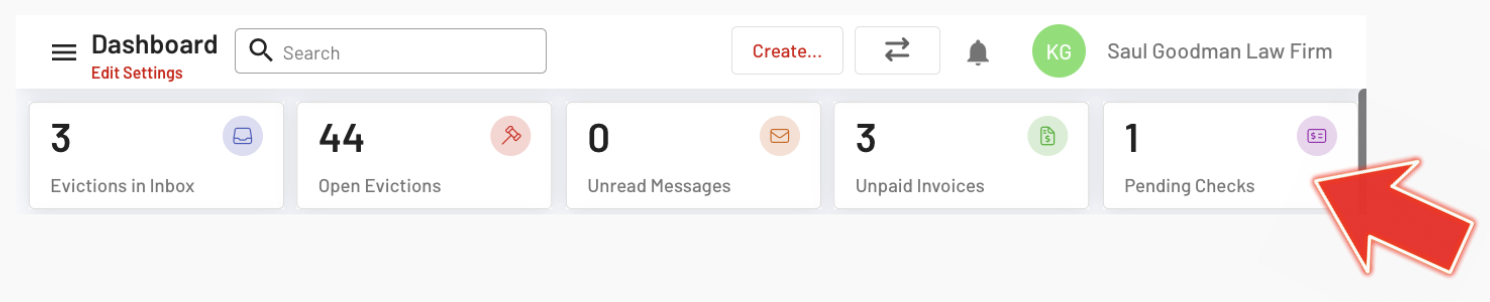
The Pending Checks widget on the Dashboard displays the current count of all pending checks, giving users instant visibility into outstanding payments.
3. Configure Payment Settings
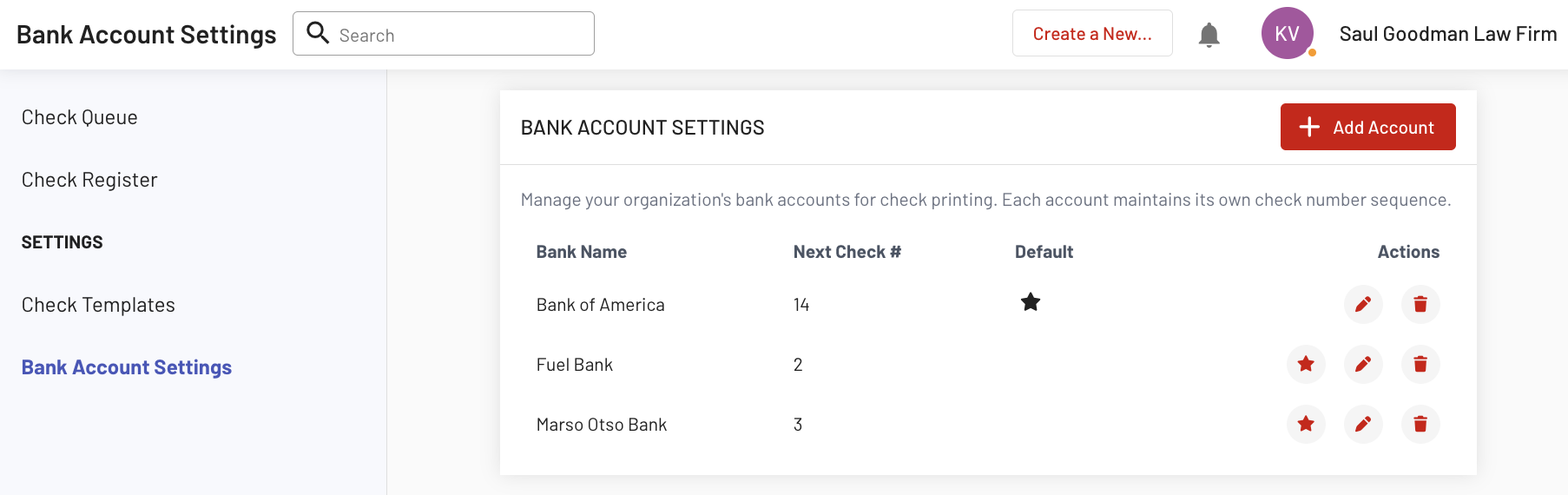
a. Go to the Payments widget and open Bank Account Settings. Click the Add Account button to add a new bank account, such as Marso Otso Bank.
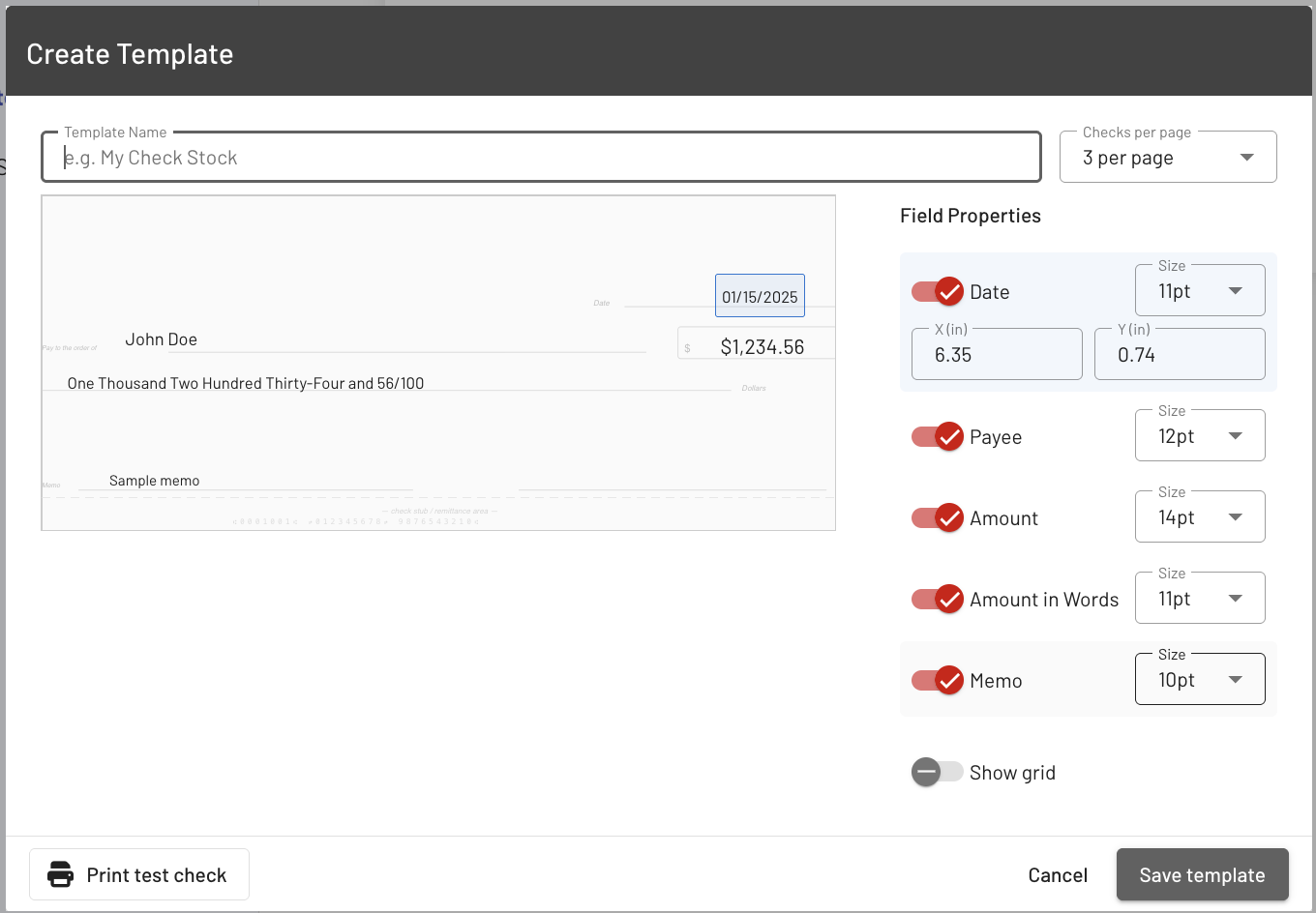
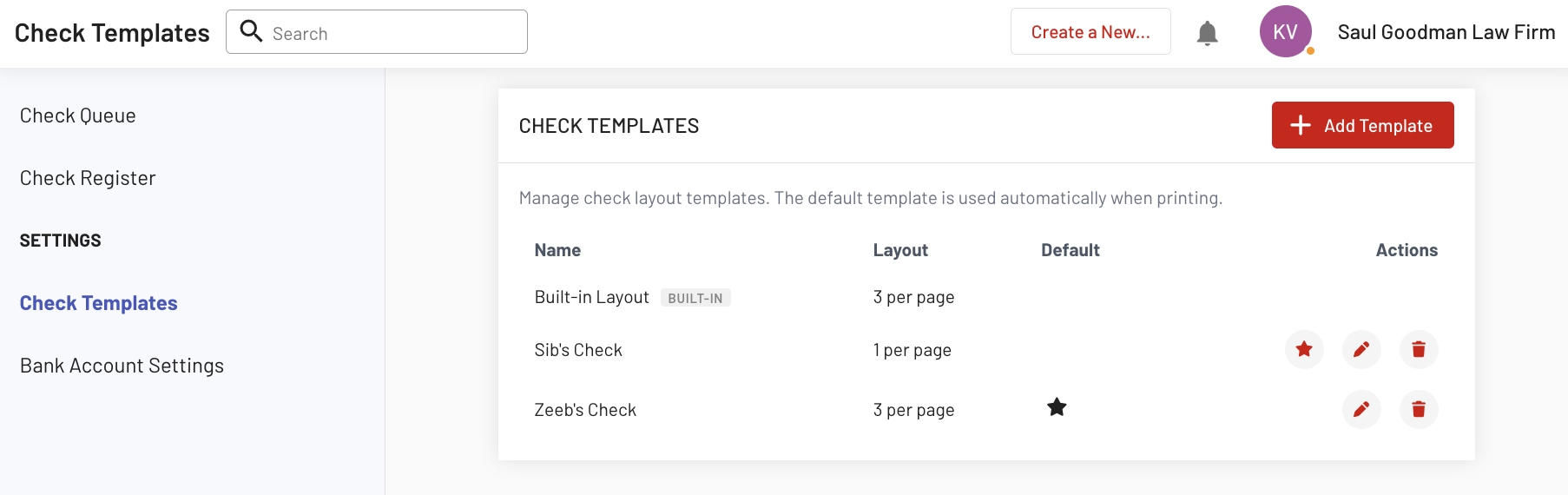
b. Create or assign a Check Template (e.g., Zeeb’s check)
4. Process Checks from the Queue
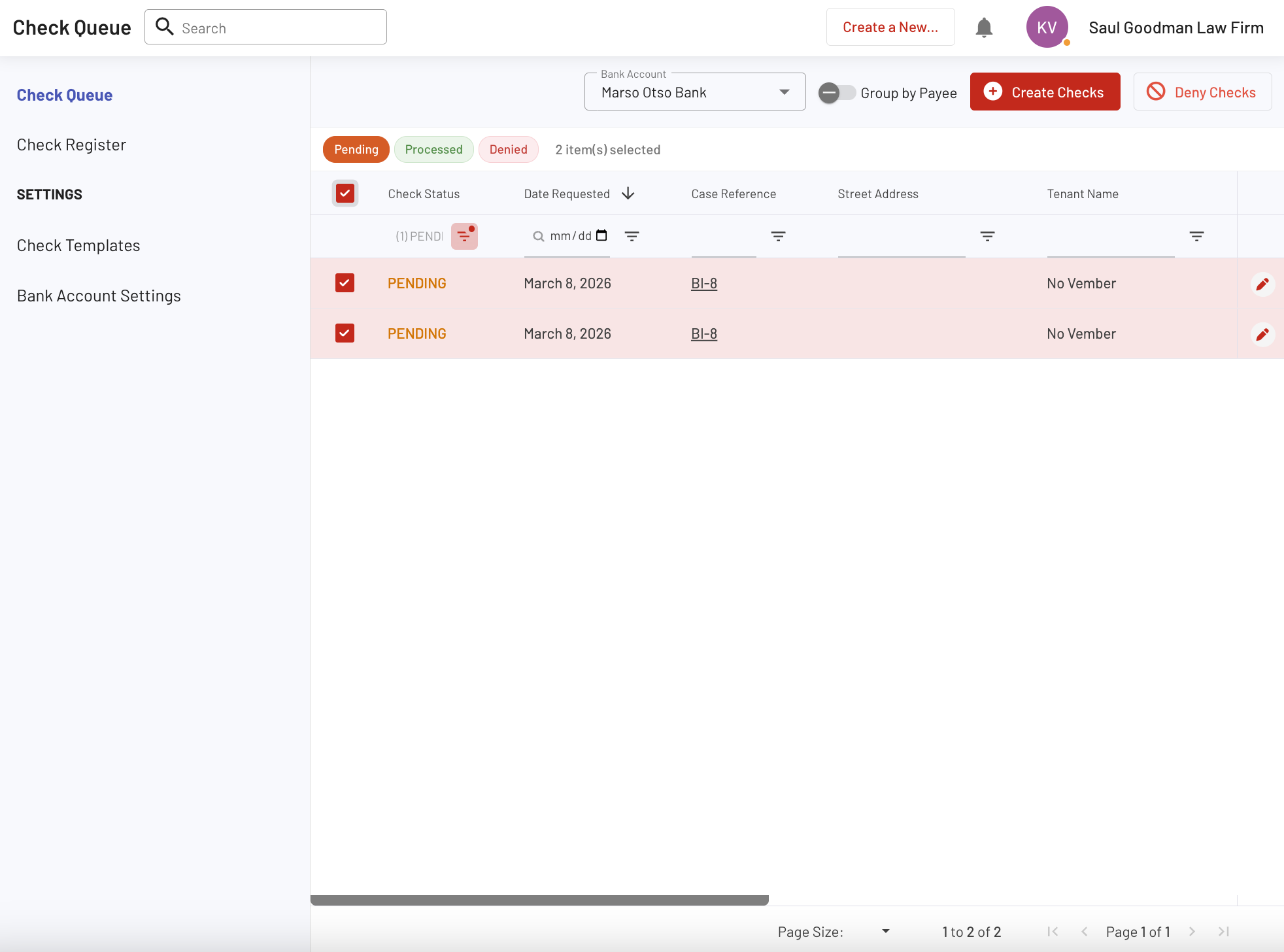
Open the Check Queue and select the bank account. Edit the payee names as needed, then click Create Checks. The selected checks will move to the Check Register as drafts.
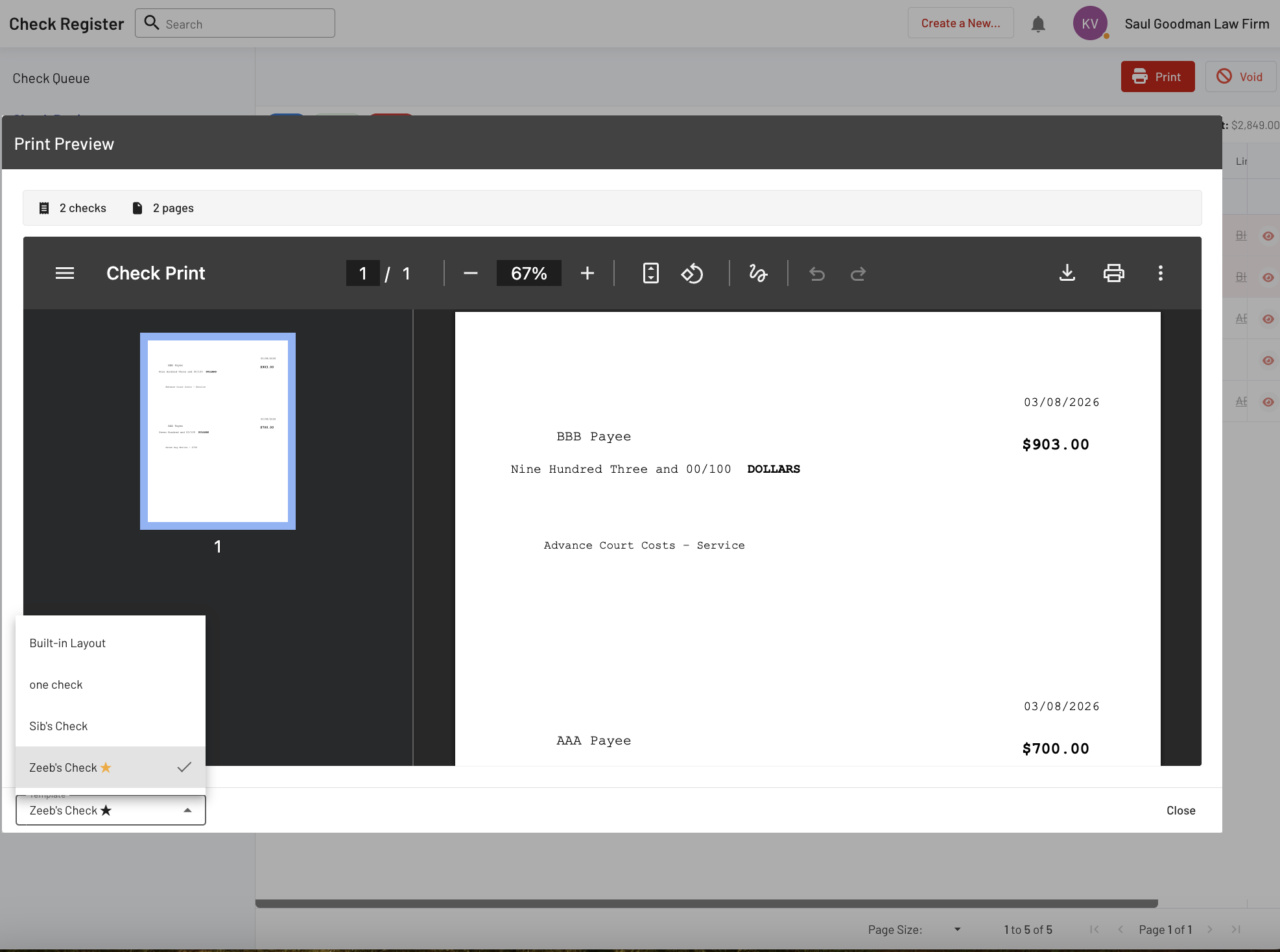
Once completed, a confirmation message will appear indicating that the checks were successfully created (e.g., “2 check(s) created successfully”).
5. Print Checks
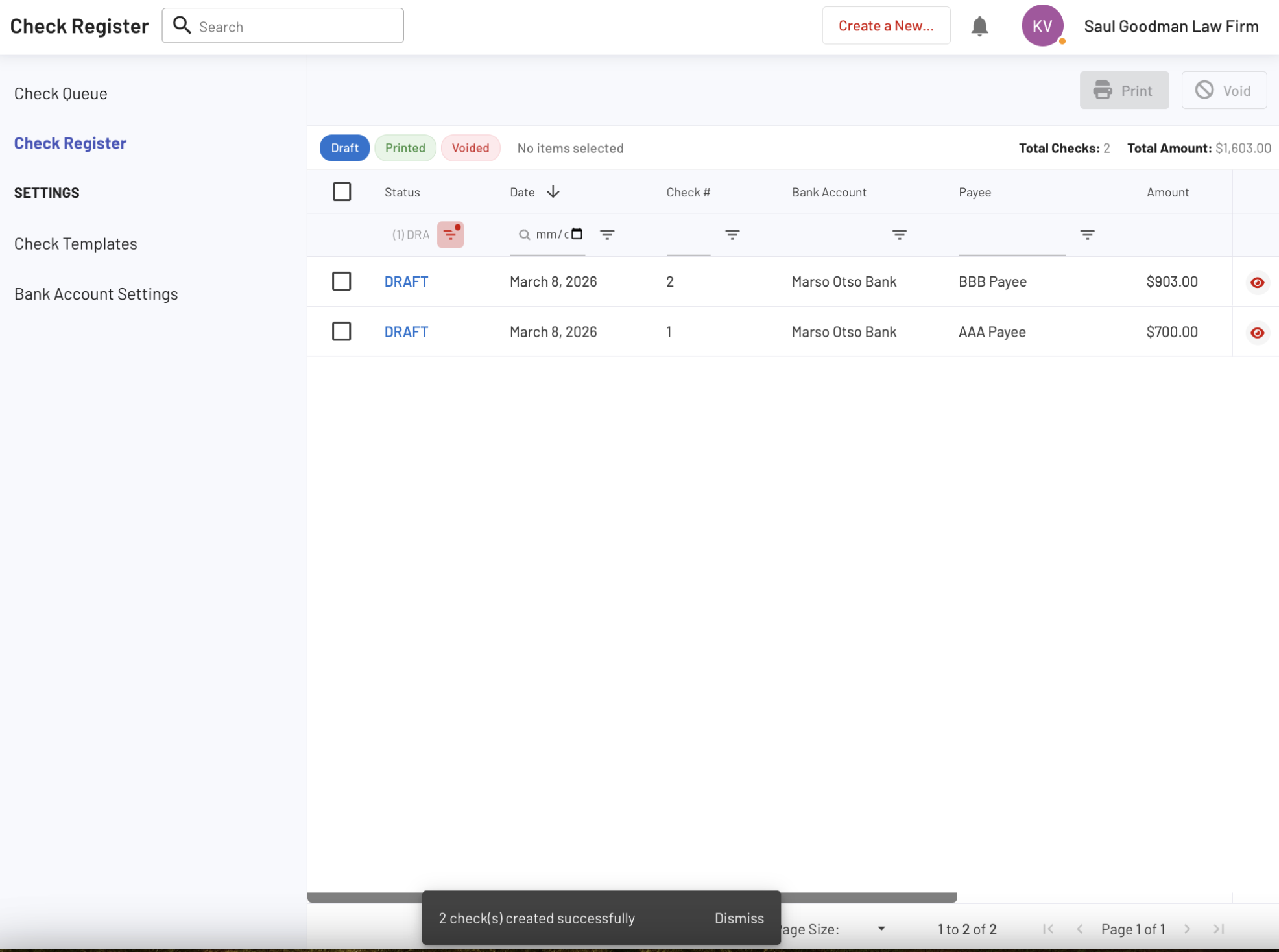
In the Check Register, select the draft checks, then choose a template from the Template Layout dropdown and click Print.
You can use the Template Layout dropdown to preview and test different check templates before printing.
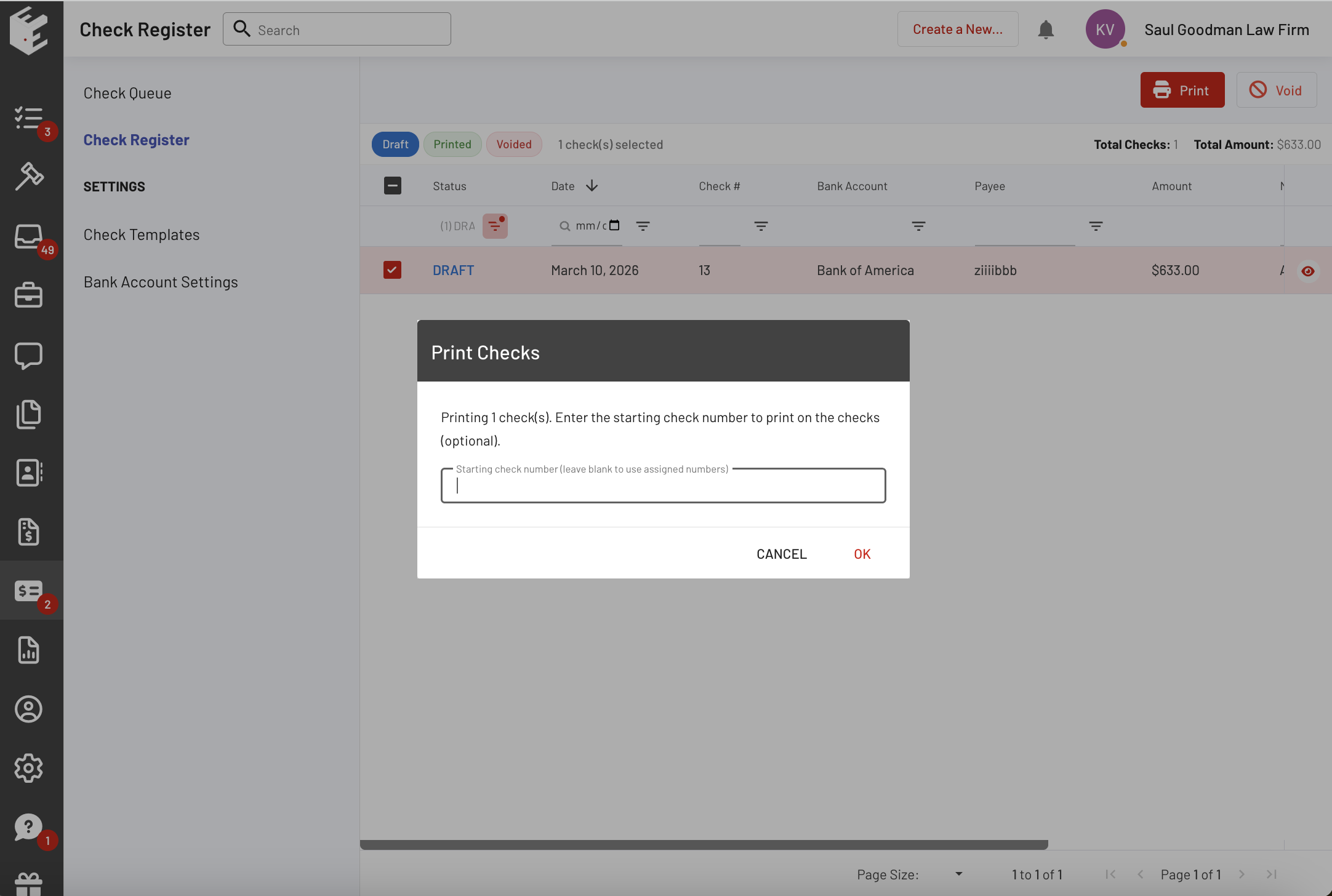
You also have the option to manually enter the check number when printing checks, as auto-incrementing check numbers are not required.
Tip: You can print multiple checks per page. For example, selecting a “3 per page” template allows multiple checks to be printed on a single page.
6. View Check Details
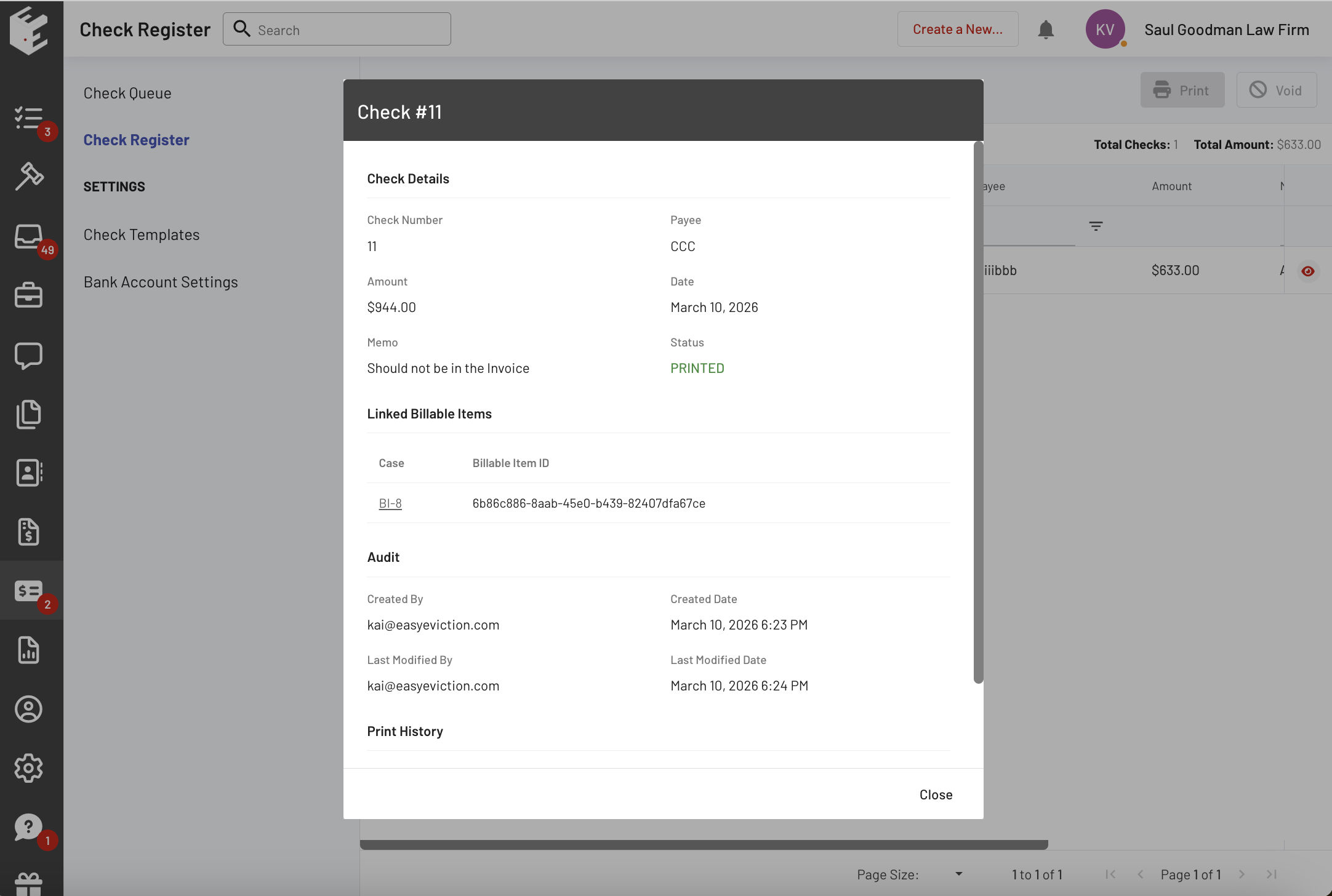
From the Eviction Details Page, clicking View Check will open the Check Register and automatically display a pop-up with the check details for quick reference.
7. Important Note
Pending checks cannot be included in invoices.
For example, a billable item with a pending check, such as BI-8, will remain separate from any invoice.
The Pending Checks feature in EasyEviction improves how users manage and track payments by providing clear workflows from request to check creation and printing. With added flexibility such as template previews, manual check numbering, and quick access to check details, users can handle payment processes more efficiently while maintaining accuracy and transparency across their financial operations.
If you have any questions, feel free to reach out to our support team.